A little wrist button for clipping VRChat
Leaving VRChat just to hit record in OBS was killing the fun, so I built a wrist button that records clips for me without ever taking the headset off. Here's what it does and who it's for.
Every time I wanted to save a quick moment in VRChat, I had to break away from it. I'd bring the desktop up inside my headset, find the OBS window, hit record, drop back into the game, do the thing I actually wanted to capture, then pull the desktop up again to stop the recording. I never had to take the headset off, but it was still a fiddly little detour every single time. None of it is hard. It just adds up, and it quietly kills the spontaneity. By the time I'd finished the dance, the moment had usually passed or everyone had moved on.
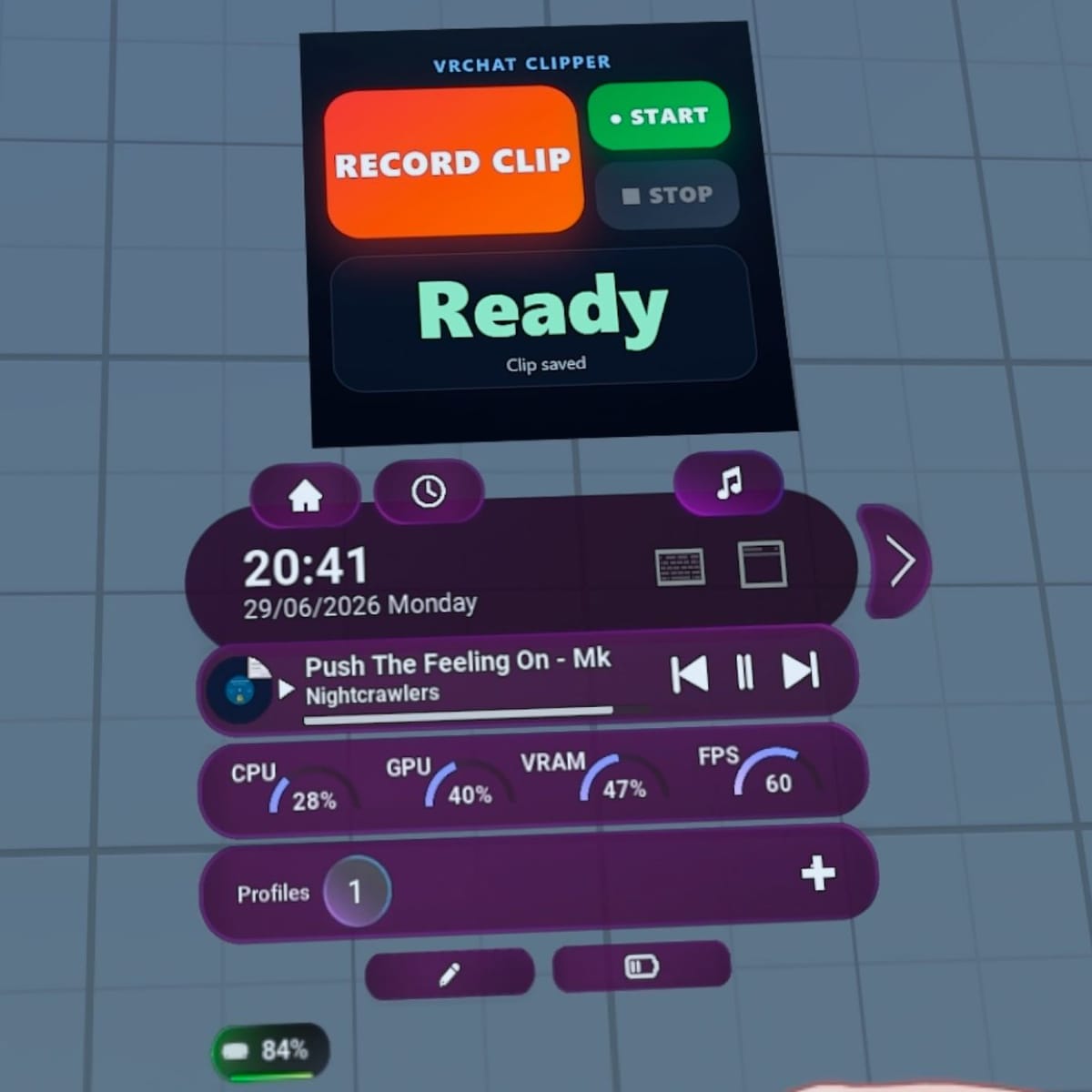
So I built something to skip the whole routine. It puts the buttons on my wrist, using OVR Toolkit. I glance down, press RECORD CLIP, a short countdown floats up in front of me, and OBS starts recording on its own. When the clip's done it stops itself. I never touch the desktop and I never have to leave the game. That's really the whole point. Take out the friction, and grabbing a clip stops being a chore you have to plan around.
How it actually works
There are a few moving parts, so here's the short version of how they talk to each other. The button lives in OVR Toolkit, the overlay a lot of us already use to pin windows and widgets in VR. That button talks to a small program running on your PC, and the program does two jobs. It sends the countdown to VRChat, and it tells OBS to record.
The countdown rides on VRChat's OSC, the same messaging system your avatar and menus already use, so the numbers show up as a chatbox message floating above you. The recording side connects to OBS through its built-in WebSocket, which lets the tool start and stop a genuine OBS recording for you. If you've set OBS up to capture VRChat's camera, you get a clean, framed shot rather than the shaky view from your own eyes.
I'll be honest about one bit of setup. VRChat's Spout camera output, the thing that sends a clean camera feed to OBS, can't be switched on automatically. You flip it on once at the start of a session. After that it's hands-off for the rest of the night.
Two ways to record
The main button is the timed clip. Countdown, a few seconds of recording, then it stops on its own. Good for the quick wave or the daft little moment you want to catch and post before it's gone.
There's also a free-form mode with separate start and stop buttons, for when you have no idea how long the thing will run. I added this one with skits in mind. If you're filming something with a few people and want to bang out quick takes to glue together later, you can start, run the take, stop, and go again, with no countdown getting in the way.
Setting it up
There's a little first-time setup to point it at OBS and VRChat, but you do the whole thing through a small web page the tool serves on your own machine, not by hand-editing anything. Open it in a browser, set how long a clip should be, drop in your OBS connection details, choose where finished clips get copied, and save. That's the lot.
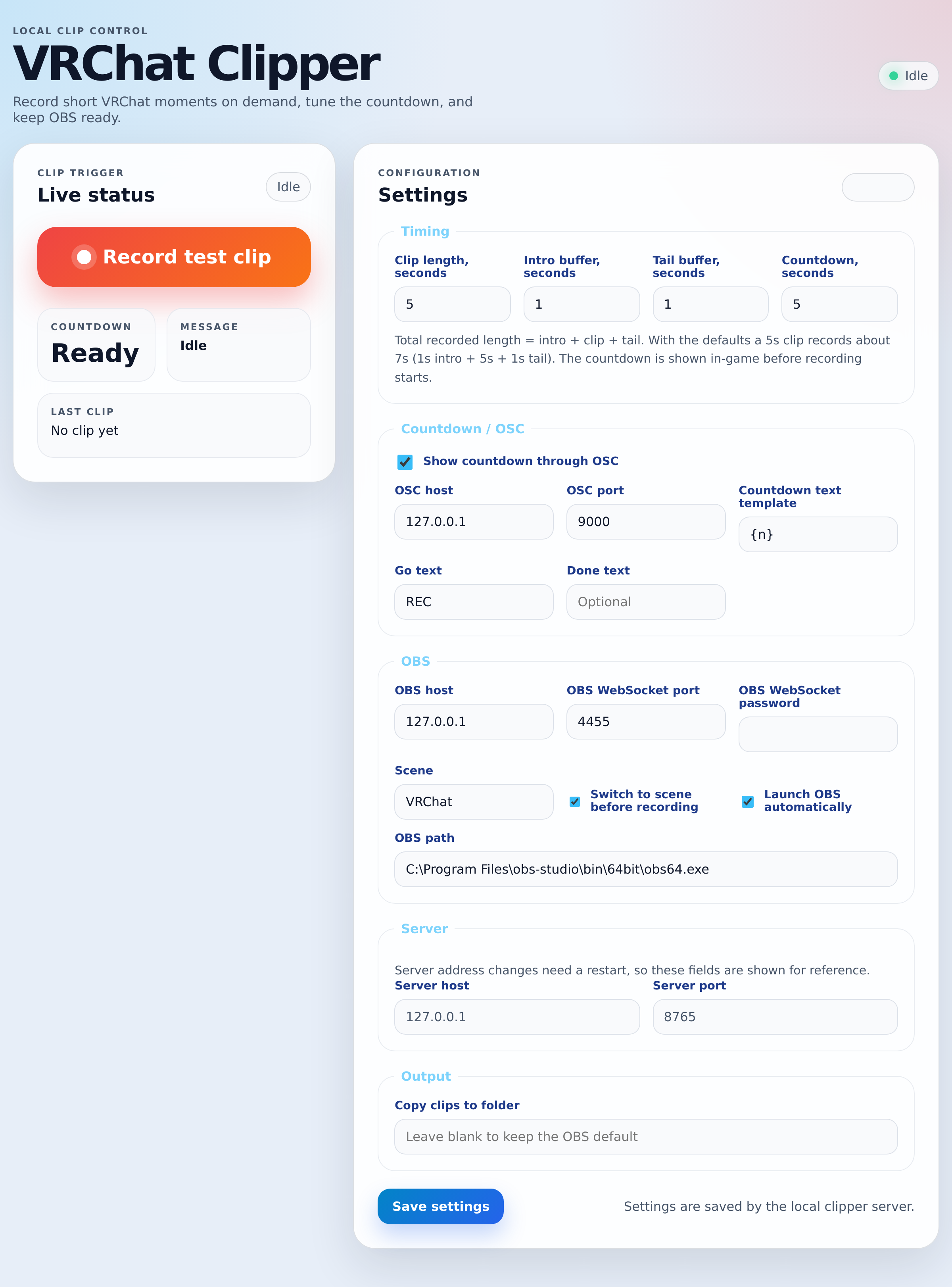
Those settings get written to a plain file on disk that sits alongside the app, so they carry over from one session to the next. You fill them in once and then forget about them. The file is right there if you ever want to change something directly, but most of the time the web page is all you'll touch.
Who I think it's for
Beyond me, I keep picturing other VRChat creators who are forever turning out reels for Instagram or clips for TikTok. That's exactly the desktop shuffle I got tired of, only multiplied by however many clips you make in a night. And the free-form takes should suit anyone doing group skits or sketches, where you're capturing raw footage and doing the real editing afterwards.
Try it
It's free and open source, up on GitHub at github.com/M1XZG/vrchat-clipper. There's a guided installer now that copies everything into place, sets the wrist button up in OVR Toolkit, and registers it with SteamVR, so you don't have to wire it all together by hand. You'll need a Windows PC running SteamVR, plus OBS and OVR Toolkit, since those are the apps it leans on.
It's still early days. I'm using it myself and smoothing off rough edges as I trip over them. If you hit a bug or something behaves oddly, please open an issue on the GitHub page. There are quick templates for bug reports and feature requests, so it only takes a minute and it genuinely helps. And if you give it a go, I'd love to hear how it works out for you, and what you end up making with it.